LUKS Auto-Unlock on CachyOS with TPM and Secure Boot

I’ve been running Fedora with a LUKS-based disk encryption setup for the past three years on my Framework laptop. It works well, but it always made me wonder: how should disk encryption work on a desktop PC that is shared by multiple people?
The last desktop PC I owned was in 2005, and back then security was not something I cared about. We used to live a simpler life. We were primitive computer users!
TL;DR: #
Enable LUKS2 disk encryption, enroll a TPM2 token for automatic unlock, keep a recovery passphrase, and use Secure Boot to make the boot path harder to tamper with.
Now that I have a new gaming/inference machine, the question came back to my frontal cortex.
Let’s go back to the basics.
LUKS primer #
The simplest way to enable disk encryption is to choose it during Linux installation. In CachyOS, this was as simple as checking the encryption option in the disk configuration step and choosing a passphrase.
During boot, the system asks for the passphrase before unlocking the encrypted partition.
That fallback passphrase is important and save it some where safe!
Congratulations you’ve got yourself a secure Linux machine!
I use this passphrase-based setup on my laptop. It works perfectly, and I’m happy to enter the passphrase every time because I move the laptop around and want the extra protection.
But for my desktop, which is connected to the TV and does not always have a keyboard attached, this is a no-go.
Before continuing, I need to talk about the elephant in the room
Secure Boot #
Secure Boot is a UEFI firmware feature that verifies boot software before running it. In other words, the firmware checks whether the bootloader and related pre-OS components are trusted according to the keys enrolled in the firmware.
By itself, Secure Boot is not a bad idea. The complicated part is the ecosystem around it. Most consumer PCs ship with Microsoft keys because they are designed to boot Windows out of the box, and many Linux distributions rely on a Microsoft-signed shim to participate in that chain of trust even Arch-based distributions often don’t come with signed kernel.
If you are interested in going deeper on Secure Boot, I suggest reading Rod Smith’s write-up:
https://www.rodsbooks.com/efi-bootloaders/secureboot.html
A lot of Linux guides still suggest turning off Secure Boot for simplicity. For this setup, though, Secure Boot is an important guardrail. I want the TPM to unseal the LUKS secret only when the machine boots through the expected, trusted path.
So I followed the CachyOS Secure Boot setup guide and enrolled my own keys:
https://wiki.cachyos.org/configuration/secure_boot_setup/#enabling-setup-mode-in-uefi
The steps in the guide are easy to follow. A few notes:
- On my Gigabyte motherboard, in order to reset Secure Boot keys, I had to choose “Reset to Setup Mode” and disable “Factory Key Provision”. Check the screenshot of the setting here.
sbctlcreates and enrolls your own Secure Boot keys. It can also enroll Microsoft and firmware-provided keys, which may be useful for Windows dual booting or hardware/option ROM compatibility.- With Limine, Secure Boot needs a little extra care. Limine’s config checksum should be enrolled into the EFI binary. Otherwise Limine may refuse to boot or panic when Secure Boot enforcement is active.
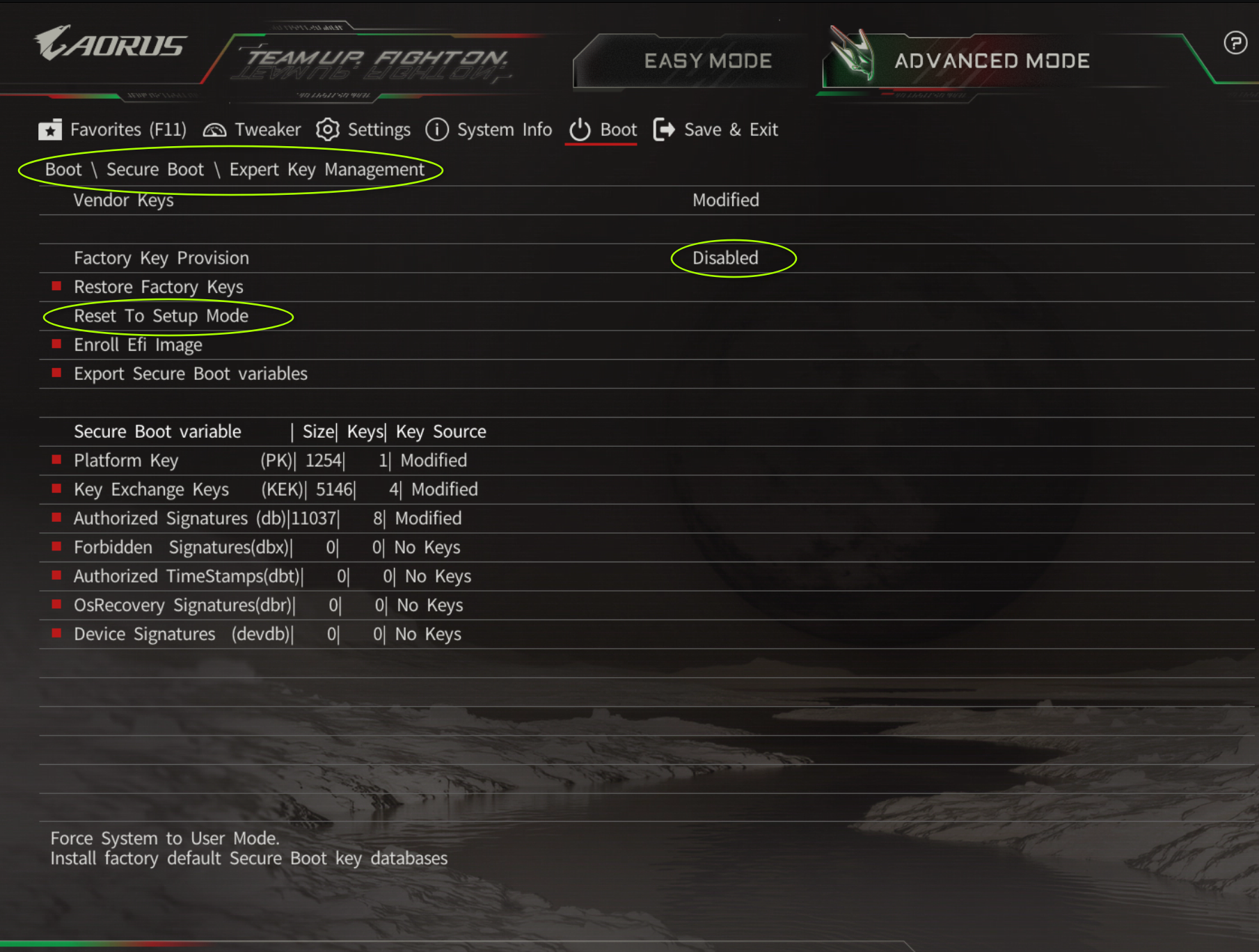
After Secure Boot is set up, we are ready for the last step.
TPM #
TPM stands for Trusted Platform Module. On modern systems it may be a discrete chip or firmware-backed TPM(fTPM) running inside the CPU. Either way, it provides hardware-backed cryptographic functions, including the ability to seal a secret to the machine’s measured boot state.
⚠️TPM has known vulnerabilities. Discrete TPMs are susceptible to bus sniffing, while firmware TPMs (fTPM) can be vulnerable to timing side-channel attacks. Assess your threat model and decide if the risk is acceptable
That last part is what makes it useful here.
When a TPM2 token is enrolled for a LUKS2 volume, the unlock secret can be sealed against selected PCRs, or Platform Configuration Registers. On boot, the TPM will only unseal that secret if the selected PCR values match the expected state.
This is the command I used:
sudo systemd-cryptenroll /dev/nvmeXnYpZ \
  --wipe-slot=tpm2 \
  --tpm2-device=auto \
  --tpm2-pcrs=0+7
Before copy-pasting this command, read what PCRs mean and decide which ones match your threat model. You can find list of well-known PCR Definitions here.
If the firmware is updated, Secure Boot is disabled, or the Secure Boot keys change, the PCR values may no longer match. In that case, the TPM will not unseal the secret and the system should fall back to asking for the LUKS passphrase.
And that’s the final setup: LUKS protects the disk, Secure Boot keeps the boot chain honest, TPM handles the boring unlock ceremony, and the recovery passphrase stays around for the day I inevitably update the firmware and confuse myself.
Is it perfect security? No.
Enjoy your encrypted, couch-friendly Linux machine!